
A device is a tablet or a computer that works for your business. You pair it once, with an 8-digit code, and it stays recognised from then on, even with no internet connection.
Video coming soon
1Add a device in the back office
Open Catalogue › Devices and click Add. Give it a name that says where it stands, such as "Counter", then click Create. The name is optional: without one, the device gets a number.
Adding a device, making a new code for it or deleting it is up to the owner, unless they give that right to someone else in Team › Roles. The manager chooses who enters their code on each till, and opens or closes the team phones.

2Keep the code in sight
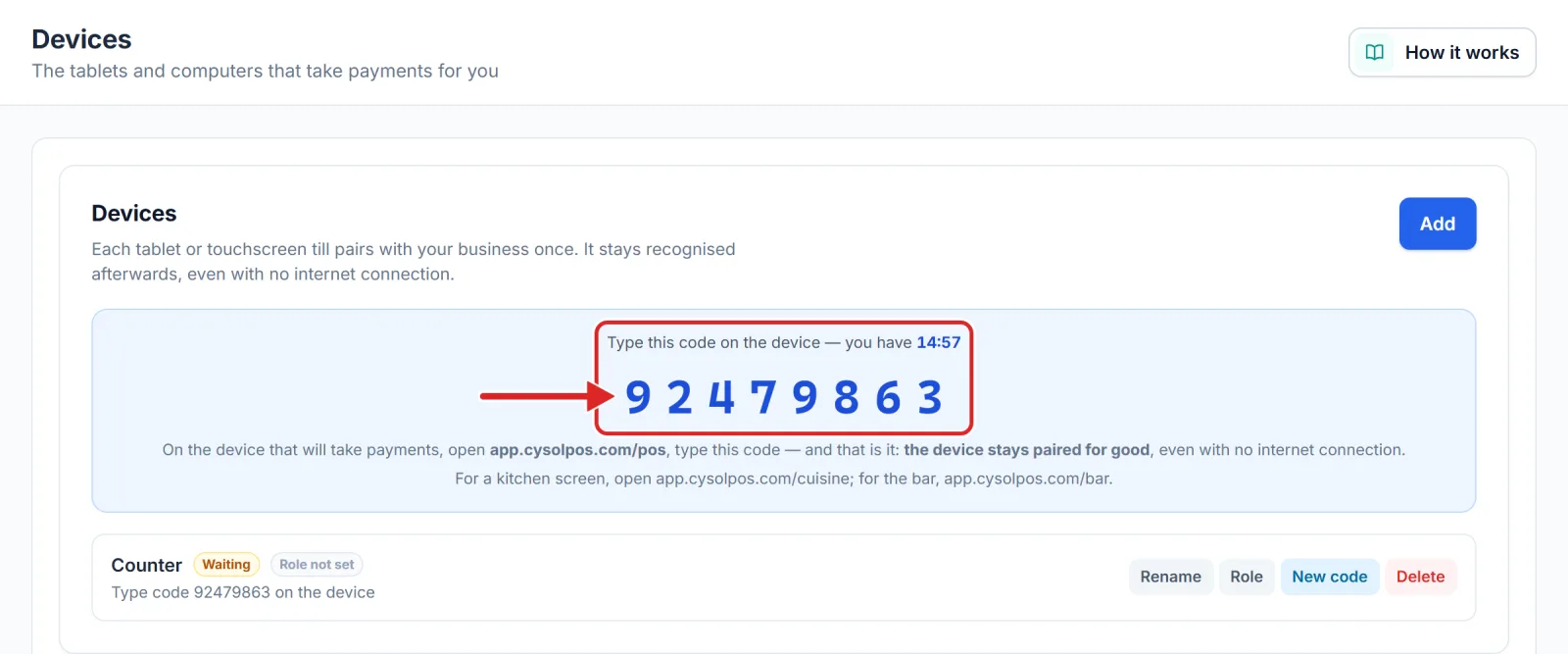
An eight-digit code appears with a countdown: it stays valid for 15 minutes. The box also shows the till address to open on the device, the one ending in "/pos".
Ran out of time? Click New code on the device's line.
3On the device, open the till and type the code
On the tablet or computer, open the till address in the browser. The Pair this till screen appears: type the eight digits.
4Say what this device is for
Right below, the question What is this device for? offers three choices: Till, Kitchen or Bar. To take payments, tap Till, then Pair. The screen confirms Till paired along with your business name, so you know you did not type someone else's code.

5Check the device in the list
Back in Devices, the line now reads Paired, with its role, under Business devices. Edit changes everything in one place: its name, its role — a tablet moving to another room, with no new code — and the staff shown on the till: The whole team, or only the employees you tick. Delete removes it for good.

A server's phone
A server can take orders on their own phone. Click Add, choose An employee's phone, then their name: the phone paired with this code only shows them, with no Z report, expenses or advances.
It only takes orders when you open it, with the switch on its line under Team phones, or from the Open / Closed status at the top of the screen. It closes when the server closes their session, or when you close it; Close all closes them all at once, and the Z report offers it too. Closed, it can only show its last closing report.
Tip — Every kitchen ticket and every receipt says which device the order was taken on: "Taken on: Personal phone", or the till's name.
How many devices?
The Starter plan includes one device, free for life. To switch to another device, click New code on its line: the old device is cut off at once, the new one keeps its name and settings. The Pro plan lets you pair as many devices as you like, and adds the kitchen and bar screens: same Add button, same code, only the address you open and the role you pick change.
Tip — On a tablet, bookmark the till address, or install it from the browser menu ("Install app" or "Add to Home screen", depending on the device): it then opens full screen.
Important — The device is recognised by its browser. If you clear the browser data or switch to another browser, you will have to pair it again.